DPaste 使用文档
Cannot Paste to Target App
If you're experiencing issues pasting to target applications with DPaste, it's usually due to missing Accessibility permissions.
Check Accessibility Permissions
- Open "System Preferences" (or "System Settings" on macOS Ventura and later)
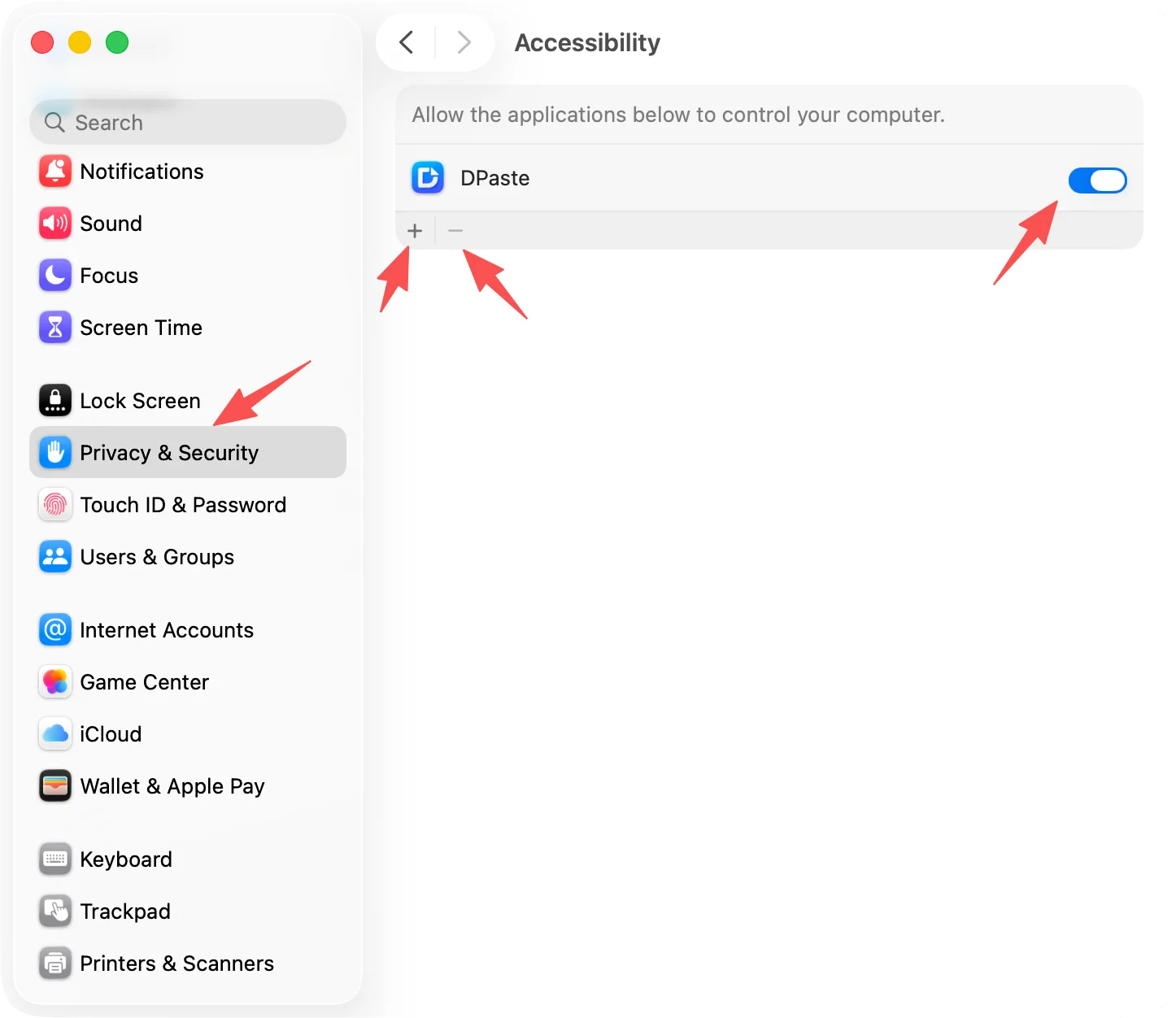
- Select "Security & Privacy" → "Privacy" (or "System Settings" → "Privacy & Security")
- Select "Accessibility" from the left sidebar
- Check if DPaste is in the list on the right
- If DPaste is in the list but not checked, check it
- If DPaste is not in the list, click the lock icon at the bottom left to unlock, then click the "+" button to add DPaste
Still Cannot Paste After Adding Accessibility Permission
If DPaste is already in the Accessibility list but still cannot paste, try removing and re-adding it by following these steps:
- On the Accessibility settings page, select DPaste
- Click the "-" (minus) button below the list to remove DPaste
- Click the "+" (plus) button to re-select and add DPaste
- If pasting still doesn't work after re-adding, restart your macOS system