Quick Start
Welcome to DPaste! This is a powerful clipboard management tool, especially designed for developers. Not only does it efficiently manage your copy history, but it also provides rich and practical features beyond traditional clipboard functionality, significantly improving your work and study efficiency.
Core features of DPaste include:
- 50+ Quick Paste Capabilities: Quickly convert copied content to target formats and paste
- Pin to Screen: Pin any copied content to the screen for easy data comparison and reference
- Source Tracking: Accurately record the source webpage address of copied content, one-click navigation, never lose inspiration, easier source tracing
- Smart Classification System: Built-in categories for text, files, images, links, numbers, JSON, SQL, Command, Color, Email, etc., keeping your data organized without configuration
- Multi-dimensional Filtering & Sorting: Support filtering and sorting by time, content length, source app, recently pasted, most pasted, etc.
- OCR Recognition & Search: All images in the clipboard can be searched by text, and support pasting images as recognized text
- Continuous Paste Mode: Use
Option + Vto enter continuous paste mode, quickly input table data, automatically move to the next item after pasting - Rich Card Content: Provides several developer-optimized content previews, JSON, SQL, timestamps, colors, URLs, code, variables, etc. at a glance
- Card & List Dual Views: Support rich card view and concise list view, card view displays at the bottom of the screen, list view follows the mouse, freely switchable
This guide will help you master the core features in 3 minutes.
Installation & Launch
System Requirements
- macOS 12.0 or higher
- Currently only supports macOS, other platforms are in preparation, stay tuned
First Launch
After launching DPaste, the application will:

| Launch at Login | Accessibility Permission | Enable Accessibility |
|---|---|---|
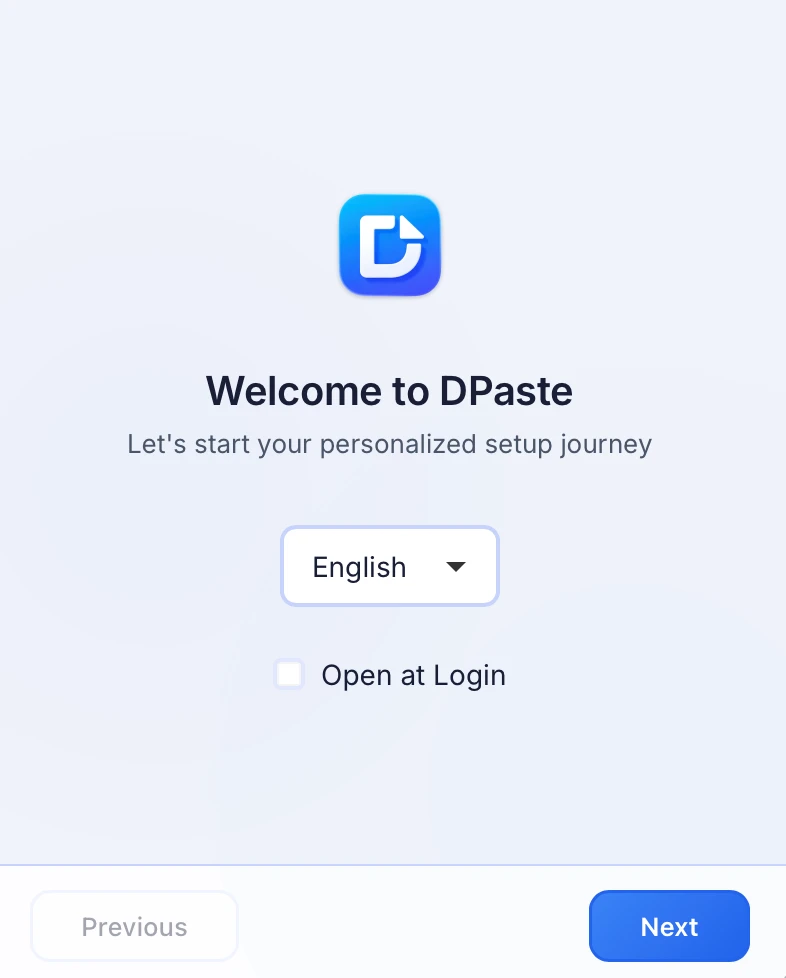 | 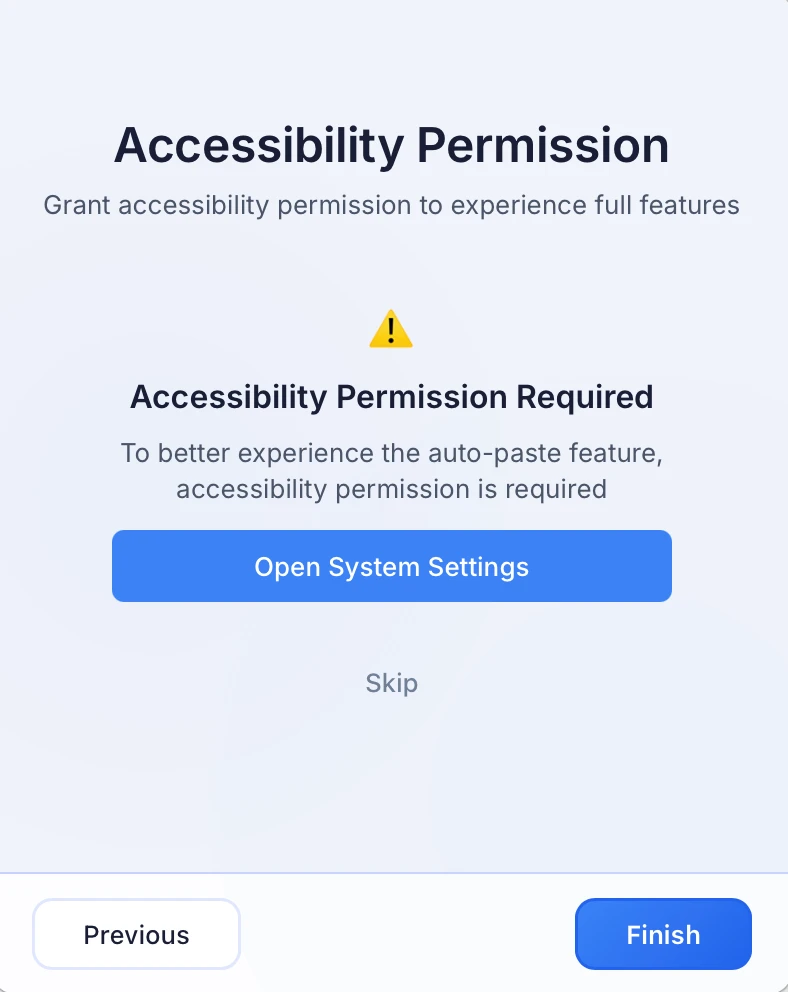 | 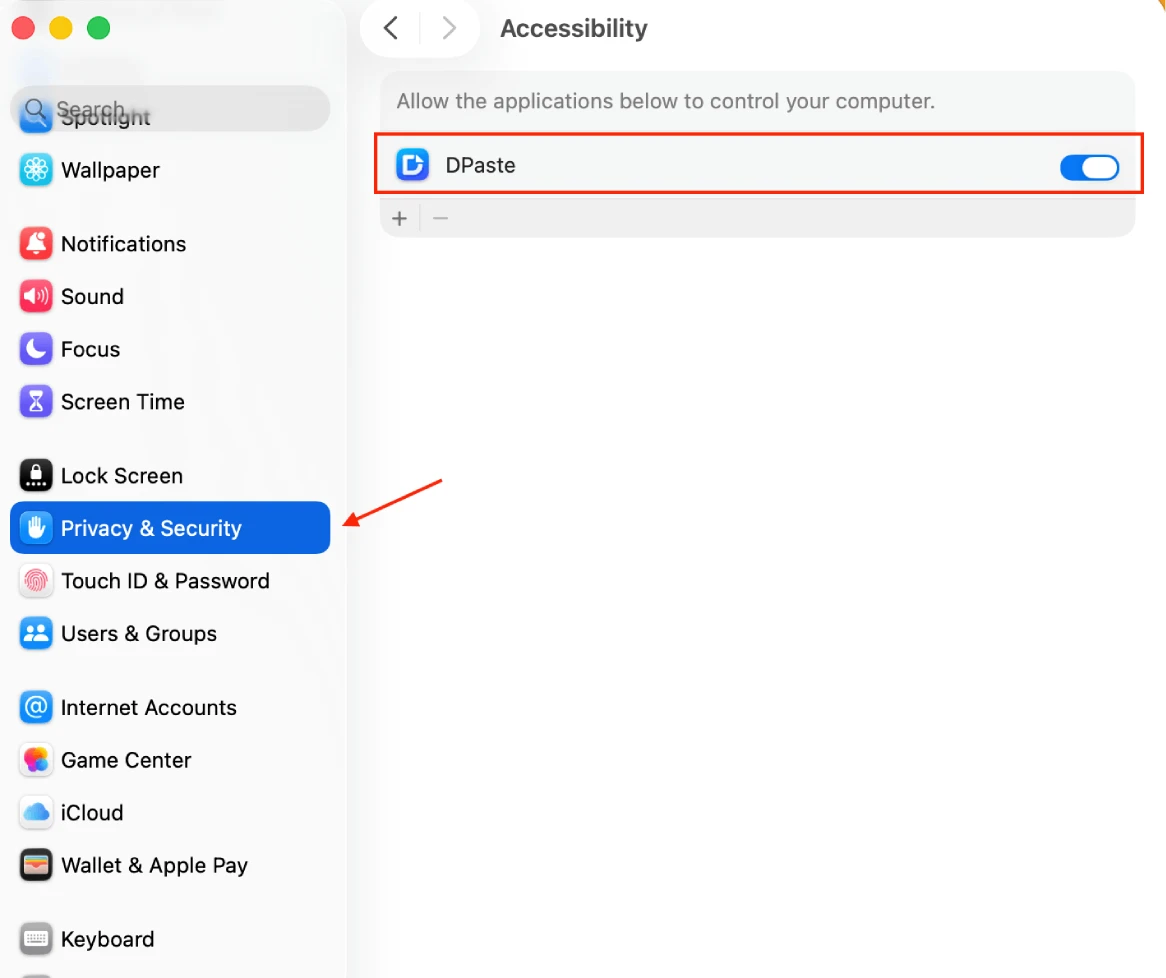 |
3.After the program starts, it automatically begins recording your copy history (all data is stored locally, feel free to use)
Interface Layout
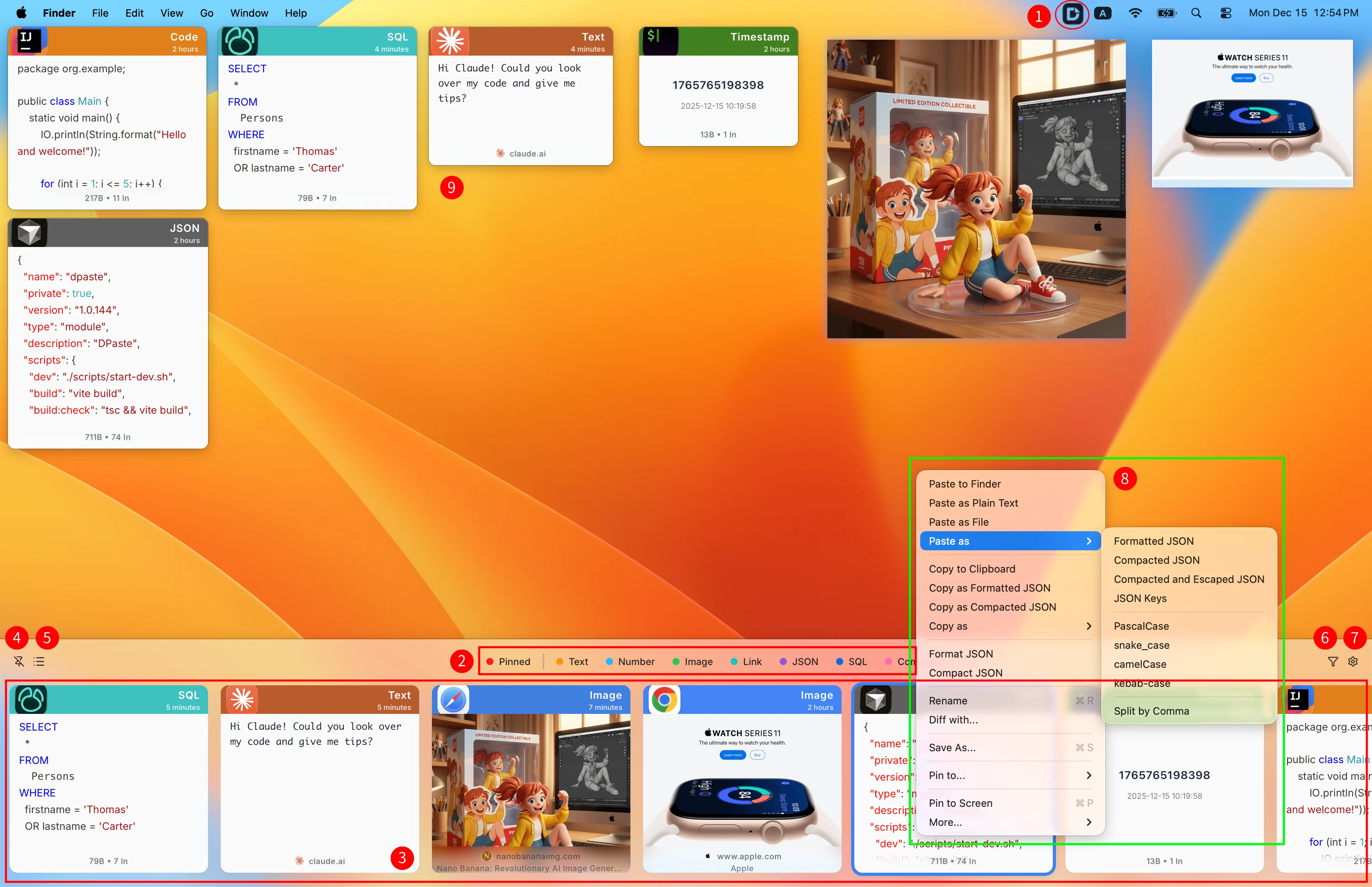
The clipboard mainly contains the following areas:
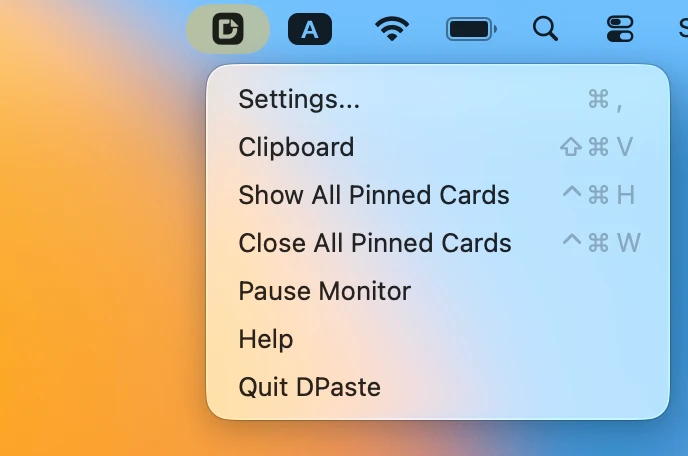
- Menu Bar Icon: Click to open clipboard, right-click to open action menu (settings, help, quit, etc.)
- Category Filter: Custom fixed categories and system preset categories
- History Records: All copy history records
- Pin Button: After pinning, the clipboard will be fixed on the screen, won't automatically close after pasting, suitable for continuous operations
- View Toggle: Support rich card display and concise list display
- Advanced Filter: Support filtering by time, content length, source app, recently pasted, most pasted, etc.
- Quick Settings: Open settings menu, documentation, and common operations from here
- Right-click Menu: DPaste provides rich right-click menus, adaptively supporting 50+ format conversions
- Pinned Cards: You can drag any record from the clipboard to the desktop to pin it to the screen
Basic Operations
View Clipboard History
⌘ + Shift + V)
Paste History Records
- Open the clipboard history window
- Use any of the following methods to select content to paste:
- Double-click a record to paste directly
- Use
↑↓arrow keys to select, pressEnterto paste - Use
⌘ + Vto paste the selected item - Use
⌘ + numberto input a number (e.g., press⌘ + 1to select the first item) and paste
- After pasting, the window will automatically close, and content will automatically paste to the cursor position (if accessibility permission is enabled)
Copy New Content
DPaste automatically monitors your copy operations:
- Use the copy function of any application (
⌘ + C) - Content is immediately saved to DPaste history
- Supports text, images, files, and other types
Right-click Menu Bar
Next Steps
Now you've mastered the basic operations of DPaste! Next, you can learn more about:
- Clipboard Management - Learn detailed management features of history records
- Pin to Screen Feature - Make full use of Pin feature to improve efficiency
- Search & Filter - Master advanced search techniques
- Format Conversion Tools - Explore powerful format conversion features