DPaste 使用文档
Pin to Screen
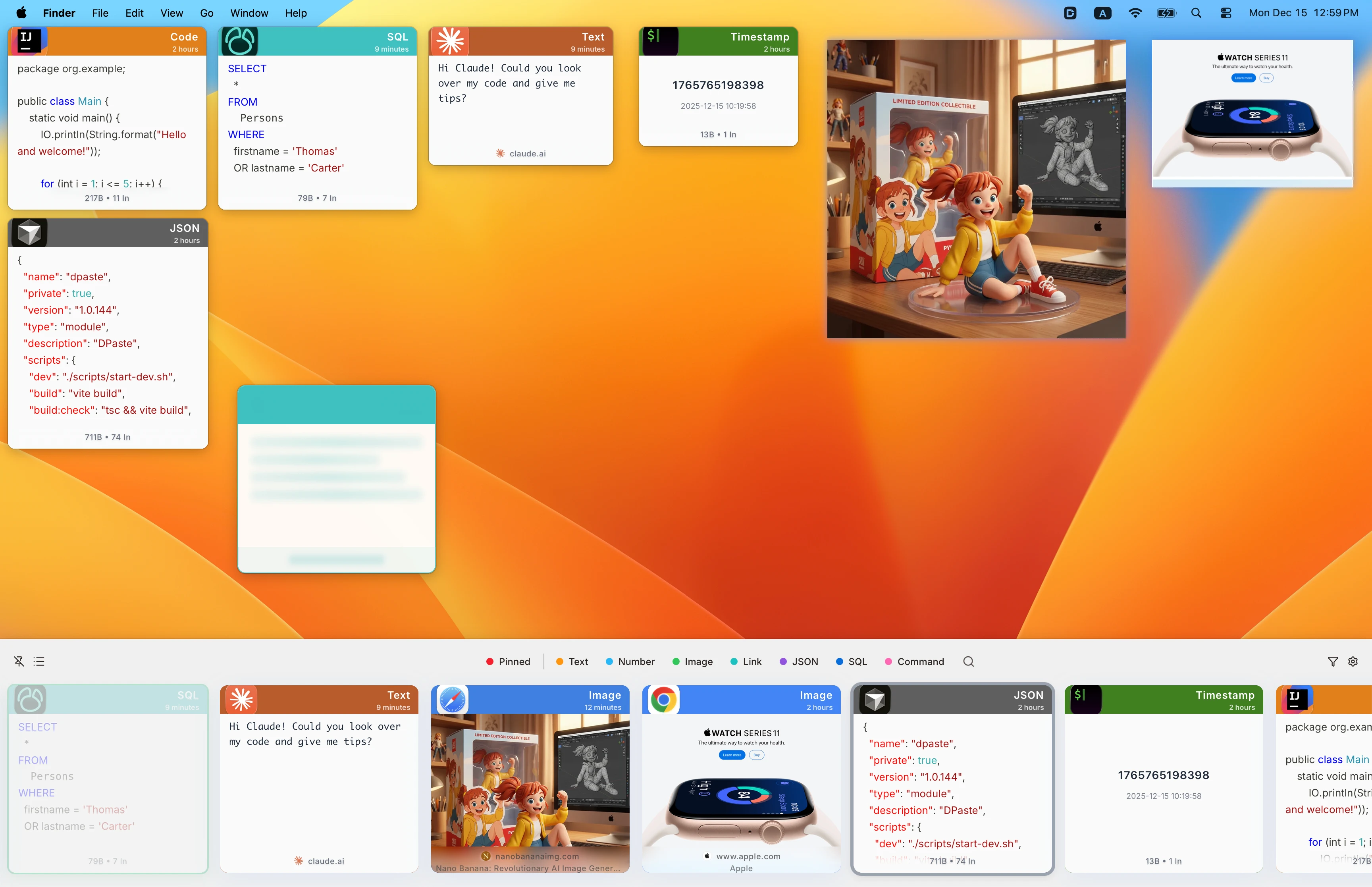
Pin to Screen allows you to fix text and image content from your clipboard on the screen for easy viewing and use. In work scenarios that require frequent comparison and reference, it greatly improves work efficiency.
Typical Use Cases:
- Pin reference documents, translations, code snippets next to you for comparison
- Temporarily save to-do lists
- Display common commands or keyboard shortcut tips
- Pin important notifications or reminders
- Fixed content frequently used across multiple applications
Create Pinned Window
Method 1: Pin from Clipboard List
- Open the clipboard history window (
⌘ + Shift + V) - Find the record you want to pin
- Use any of the following methods to pin:
- Right-click menu and select "Pin to Screen"
- After selecting a record, press
⌘ + P
Method 2: Quickly Pin the First Item in Clipboard
Without opening the history window, use the shortcut
⌘ + Shift + P to directly pin the most recently copied contentManage Pinned Windows
Move and Resize
Move Window
- Drag the title bar with the mouse to move the window
- Supports multiple displays, can be dragged to different screens
Resize
- Drag the four corners or edges of the window to resize
- Use two-finger zoom to quickly adjust window size
Show/Hide
- Shortcut
⌘ + H: Hide current pinned window - Shortcut
⌘ + ⌃ + H: Show/hide all pinned windows - Show/hide through menu bar menu operations
Close
- Shortcut
⌘ + W: Close current pinned window - Shortcut
⌘ + ⌃ + W: Close all pinned windows - Close through menu bar menu operations